
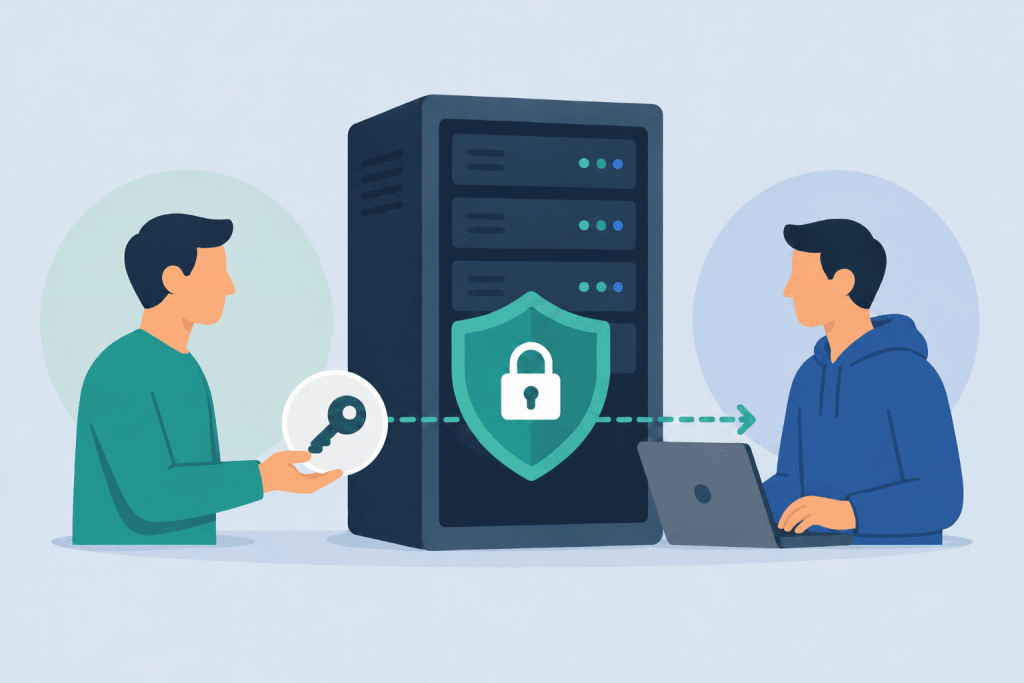
When a website goes down, a project needs to be moved, or some settings need to be adjusted, the first thing a developer asks for is access. And this is where it is very easy to step on the classic rake: send over the main password for everything under the slogan “here, figure it out, just do it faster.” But access to a VPS or a dedicated server is not just logging into some panel. It is a direct opportunity to rewrite files, wipe databases, break mail, or even accidentally shut down the whole project.
Proper access handover does not stop an admin or developer from doing their job. It simply keeps them within the boundaries of the task they were actually invited for.
If it is a Linux VPS
For Linux servers, the standard is SSH. That is, managing the machine through a terminal using commands. If a person only needs to update code, check logs, or change the application config, they usually do not need root at all. Root in Linux is absolute power: you can edit any system files, remove services, and control the server however you want.
The right approach is to create a separate user and lock that user within the required directory, for example, inside the folder of a specific website. If there is really no way around administration, it is better to configure permissions through sudo. This way the contractor can run specific commands with elevated privileges, but the main root password stays with you.
Instead of passwords, it is better to use SSH keys right away. The work is done – the key is removed, and access is closed. This is much easier than later frantically trying to remember which chat you once sent the password to, and to whom.
If it is a Windows VPS
In the Windows environment, everything usually revolves around RDP – remote desktop, where the admin sees the familiar Windows Server interface. And here again, there is no need to hand over the built-in Administrator account right from the start.
Create a separate local user. If the task requires deploying software, reconfiguring services, or digging around in IIS – yes, admin rights will most likely be needed. But when the whole task comes down to updating a database in a CRM, accounting software, or simply editing scripts, full rights will be excessive.
When the contractor has finished the work, this account should at least be disabled, and better yet, deleted. At the same time, check whether any active RDP sessions are still “hanging” and whether any new faces have appeared in the Administrators group. For servers where several employees work at the same time or where clients’ personal data is stored, this is critical.
If it is a dedicated server
With a dedicated server, the stakes are higher, because the contractor gets control not over an isolated virtual environment, but over the actual “hardware.” Such a machine usually runs a lot of things: several large websites, heavy databases, internal mail, and backups. So giving maximum rights there is only worth it when the task simply cannot be solved any other way.
For Linux and Windows on “hardware,” the rules are the same: separate accounts, SSH keys, minimum permissions, and sudo strictly for its intended purpose.
But there is one more nuance – IPMI, iDRAC, and other interfaces for remote hardware management. This is not just another website admin panel. Through these things, you can power-cycle the server, change the disk boot order, mount your own system image, and get full access while bypassing any OS passwords. Developers should almost never be given access to them, unless there is some truly extreme problem with the kernel or hardware.
What to check before handing over access
First, clearly define the task. What exactly are we doing? Updating the CMS, moving a database, installing an SSL certificate, figuring out why a 500 error keeps appearing, or changing the web server config? The access level depends on this.
For basic edits to website templates, SFTP or access to a regular hosting panel is enough. For a database, it is more correct to create a separate user in MySQL or PostgreSQL with permissions only for one specific database. And if you just need to configure a plugin in some WordPress site, create an admin inside the CMS itself – the server has nothing to do with it.
And most importantly – make a backup before letting someone onto the server. Especially if a system update, Nginx, Apache, IIS, or PHP reconfiguration is planned. A backup does not cancel out the human factor, but it saves you very well if something goes wrong.
What to do after the work is finished
The work is accepted – access is closed. Immediately.
- On a Linux VPS: delete the temporary user or their key, clean up sudo certificates, change the password if you had to expose it.
- On a Windows VPS: disable or delete the RDP user, check the Administrators group list.
- On a dedicated server: additionally review access to IPMI/iDRAC, databases, and internal admin panels.
The logic here is simple for any infrastructure: do not give root/administrator without extreme need, create a separate entry point for each task, limit permissions as much as possible, keep a fresh backup at hand, and close the door behind you right after the work is finished. The tools are different everywhere, but the contractor should always see only that piece of the system they were paid for.