
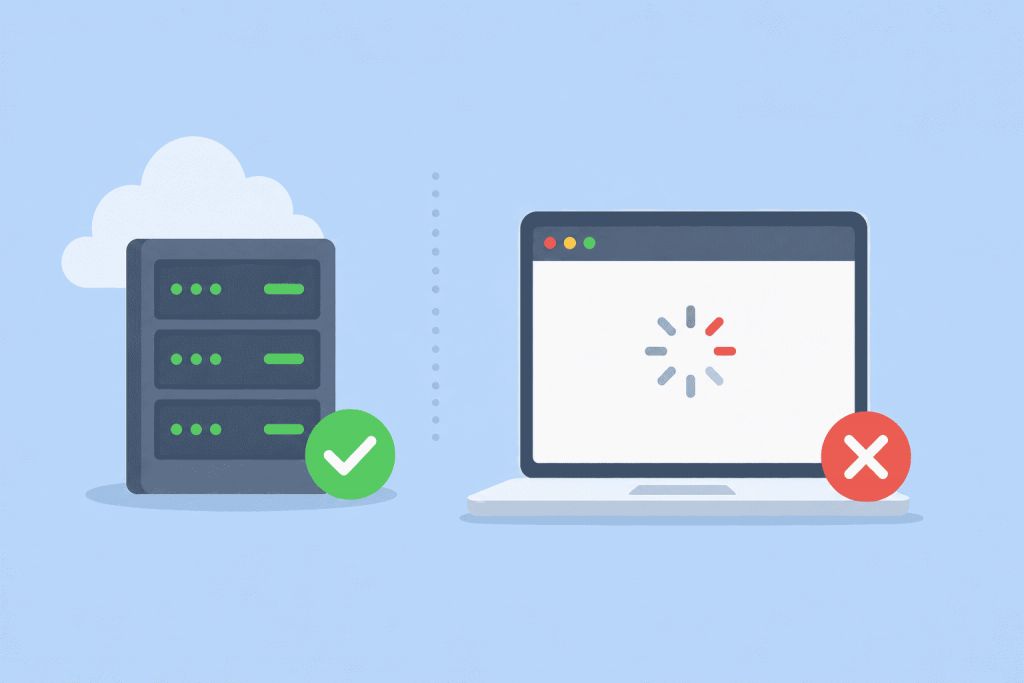
The website has become slow, so the server is the first suspect. Adding CPU cores or RAM, or moving to a more expensive VPS, seems like an obvious solution. Sometimes the configuration is upgraded, though, and the pages still take just as long to load.
A server only handles the tasks the website gives it. When the code starts unnecessary processes, the database spends too long searching for data, or the browser has dozens of large files to load, extra server capacity may change very little. Before upgrading anything, it helps to find the stage where the delay begins.
Check whether the server is short on resources
Look at CPU, RAM, and disk usage while the website is actually slow. Daily averages are not very useful in this case. A brief spike may barely stand out on the graph, yet still be enough to delay a page.
If the CPU stays near its limit, available RAM runs low, and the system keeps using swap, the server may indeed need more resources. A long queue of read and write operations can point to the disk.
It is a different case when plenty of capacity remains, but one page still takes several seconds to generate. Then the website itself needs attention. The server is not overloaded. One process is simply taking too long.
Compare pages and other websites on the server
First see whether the whole website is slow. The homepage may open normally while search, the product catalogue, or the account area lags. When that happens, the server’s overall capacity is probably not the issue. The delay is more likely tied to what that section has to do.
The same comparison works for several websites hosted on one server. If only one of them has slowed down, check its code, CMS, plugins, and database. A server running out of resources will usually affect the other projects using it as well.
Timing can reveal a lot too. Perhaps the slowdown appeared after a theme update, a new module, or another feature was added. The server stayed the same. The workload did not.
Check how long the website takes to respond
Two separate delays can make a website feel slow. One happens while the website generates its response. The other happens later, while the browser downloads images, styles, scripts, and everything else needed to display the page.
When there is a pause before the response begins, the code or database may be holding things up. A page might repeat a heavy calculation, search through a large table, or wait for an external system each time it opens.
When the HTML arrives quickly but the page keeps loading, inspect what the browser receives. Large images, video, extra JavaScript files, fonts, live-chat tools, and advertising widgets may add several seconds even though the VPS itself is working normally.
Check the database queries
A poor database query can go unnoticed on a small website. As the database grows, an operation that once took a fraction of a second may become much slower.
Usually, this does not affect every page. Search may lag. A category containing thousands of products may open slowly. Filters may freeze, or reports may take longer to build. Simple information pages continue to work normally.
Repeated queries are one possible cause. Another is searching large tables without the right indexes or trying to load too many records at once. Adding RAM does not correct the query. It first has to be found and checked.
Look at what changed before the slowdown
This is often the quickest way to narrow the search. If the problem appeared after a plugin installation, CMS update, large catalogue import, or connection to an external service, start there.
A module may launch background work whenever someone opens a page. An external service may respond slowly while the website waits. An update can also break caching or cause a conflict between components.
Temporarily disabling a recent extension may tell you more than immediately switching to a larger VPS plan.
When adding server resources will not help
The VPS configuration is unlikely to be the cause when resources remain available, only certain pages are slow, or the delay began after changes to the website.
In that case, check error logs, slow database queries, plugins, caching, and external connections. Only then does it make sense to decide whether the project has outgrown its server.
More resources help when the website is actually reaching the server’s limits. They will not repair a query that scans the entire database, a faulty plugin, or a page carrying tens of megabytes of uncompressed files. A proper diagnosis is usually more useful than an upgrade made at random.